How to Vibe Code an iOS App Without Xcode Using FreeMilk
Learn how FreeMilk turns prompts into Swift code, builds it on remote Macs and streams a live iOS simulator to your iPhone, without installing Xcode yourself.

You can vibe code a native iOS app in FreeMilk without installing or opening Xcode yourself. You describe the app on your iPhone, FreeMilk's agent writes the Swift and SwiftUI code, and a remote Mac builds the project. A live, tappable iOS simulator streams back to your phone so you can try the app and ask for changes.
Apple's development tools still do the compiling. FreeMilk moves that part of the workflow to remote Macs and lets you control it from your phone. Knowing where each step happens makes the process much easier to follow, especially when you move from a preview to an app you want other people to install.
What vibe coding an iOS app means.
Vibe coding is an iterative way to build software with plain-language instructions. You describe a feature, an AI agent writes or edits the implementation, and you check the result. For an iOS app, that result needs to become a running app you can tap through. A generated screen is a starting point; working navigation, saved data and predictable behavior are what make it useful.
FreeMilk brings the coding agent, remote builds and an interactive preview into the same phone workflow. You steer the app in ordinary language, and if you code, every file is yours to read and change. It's also free: ads fund a daily allowance of coding models that refills every day, so there's no subscription or per-token bill while you iterate.
What runs on your phone and what runs on a Mac.
Here's where each step happens, from idea to preview.
| Step | Where it happens | What you get |
|---|---|---|
| Describe and refine | FreeMilk on your iPhone | Instructions for the app and feedback on changes |
| Write and edit code | Your FreeMilk project, on your phone | Swift source files and SwiftUI views |
| Compile the app | A remote Mac | A build produced with Apple's development tools |
| Run the preview | iOS Simulator on the remote Mac | A live stream you interact with from your phone |
| Test on a device | A separately prepared device build | An installed app for checking real-device behavior |
Apple describes Xcode as its development environment for building, testing and distributing apps. FreeMilk uses that toolchain on remote Macs, and your iPhone is where you direct the work and review it. You'll need an internet connection for remote builds and the streamed simulator.

1. Describe a small first version.
Start with one purpose and a few actions. A reading log is a useful example: add a book, record your current page and see your progress. Save accounts, social features and subscriptions for later. A small first version gives you a short list of behaviors to check after each build.
 Example starting prompt
Build a native iOS reading log using Swift and SwiftUI. Show a list of books with a title, author, total pages, and current page. Let me add a book, update my current page, and delete a book with confirmation. Save the books locally so they are still there after I close and reopen the app. Use standard iOS navigation and a simple, readable layout. Start with local storage and no sign-in.

This is an example brief you can adapt. The generated implementation can vary, so check each requested behavior in your own build. A precise first prompt gives you something concrete to evaluate.
2. Let FreeMilk turn the request into a Swift project.
Swift is the programming language for the app's logic. SwiftUI describes its interface: lists, forms, buttons, navigation and how the screen responds to changes in data. FreeMilk's agent plans the work, then writes and edits these project files from your instructions. For the reading log, that means defining a book, creating the list and edit screens, and implementing the saving behavior you asked for.
While it works, the agent shows exactly what it's doing in your Dynamic Island, and the files it writes live on your phone. You can ask it to explain its changes in plain language. If you already write Swift, you can review the files and give more specific instructions about data models or view structure. Both approaches lead back to the same question: does the app behave as intended?
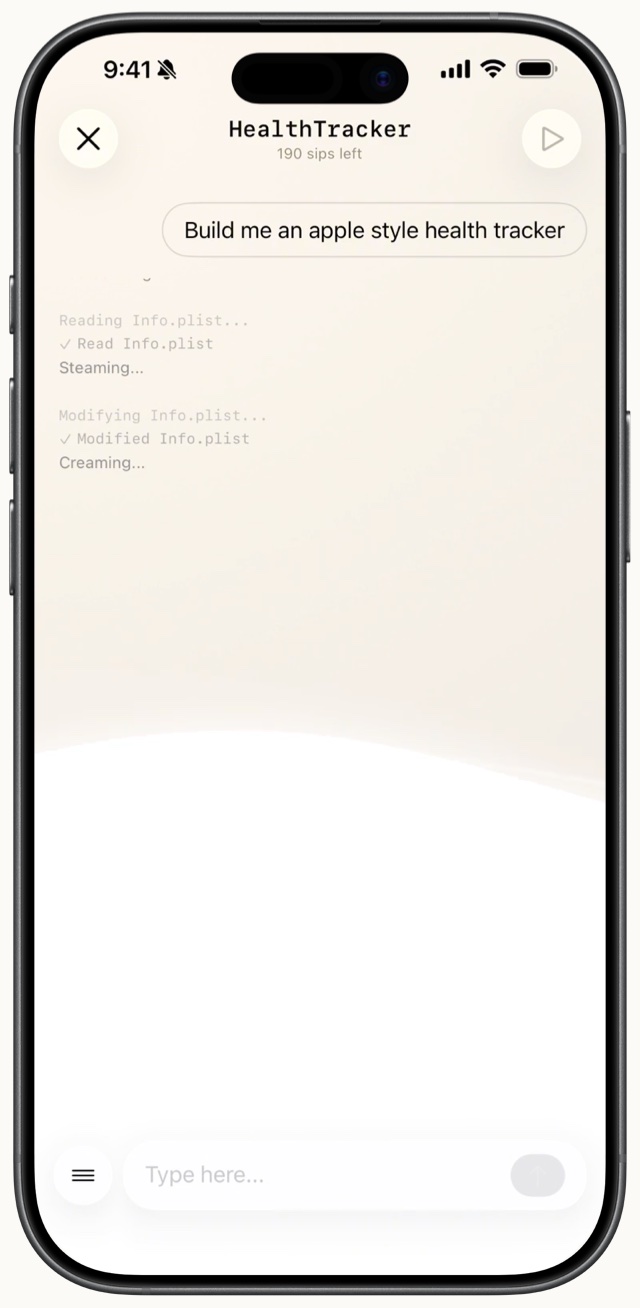
3. Build remotely and try the simulator.
A remote Mac compiles the project and runs the simulator build. FreeMilk streams the simulator to your iPhone, where you can tap through the app. Add a book, enter a page number, go back to the list and check the displayed progress. This is where your idea becomes a sequence of actions you can evaluate.
A compilation error means the code needs another pass before the app can run. A successful build means you can start testing behavior. If adding a book works but changing its page number does nothing, describe that exact sequence and what you expected to happen. Build again after the fix and repeat the same steps.
4. Refine the result with specific feedback.
Point to exactly what needs attention. Name the element and where it sits on the screen, then pair it with a clear instruction: increase the contrast of the progress label, move the Add button below the title or keep the Save button visible when the keyboard opens. For a behavior issue, describe the taps and values that reproduce it.
For more examples of useful instructions, read the Swift and SwiftUI prompting guide. It covers first prompts, focused revisions and bug reports.
Previewing, installing and publishing are separate steps.
The streamed simulator runs on a remote Mac, so a preview isn't an installed app. Installing your app on an iPhone takes a device build with the appropriate code signing and device setup. Treat that as its own step before you rely on the app outside the simulator.
For a release, plan for an Apple Developer Program membership, an App Store Connect record, signing, screenshots and the required app information. TestFlight supports beta testing, and a public App Store release also goes through Apple's review process. FreeMilk's build workflow doesn't replace those distribution requirements. Our App Store checklist walks through each one.
Test a device build before release, particularly if your app relies on the camera, notifications, permissions or hardware behavior. Review the data your app stores and the way it handles errors. These checks are part of finishing the app, whether the first version was written by hand or generated from a prompt.
You can open the project in Xcode later.
FreeMilk exports your Swift project as a complete Xcode project. You can continue development on a Mac or hand the project to a developer. Starting from your phone lets you explore and refine the product while keeping a conventional Swift project available for later work. If you're weighing other ways to work without a Mac, our guide to free Xcode alternatives compares them.
To start your first project, follow the step-by-step guide to building an iOS app from your phone. It walks through a small habit tracker, with prompts and checks for each stage.
Frequently asked questions.
Can I build an iOS app without downloading Xcode?
Yes. With FreeMilk, you direct the project from your iPhone while Apple's build tools run on remote Macs. You don't need to install Xcode on a computer you own.
Is Xcode running on my iPhone?
No. The Mac build environment and the iOS Simulator run remotely. FreeMilk streams the simulator to your phone and lets you interact with it.
Does FreeMilk write real Swift code?
Yes. For a Swift project, FreeMilk writes Swift and SwiftUI source files. Every file is yours to read and change, and you can export the complete Xcode project.
Does a successful build mean my app is ready for the App Store?
No. A successful build is a development milestone. You still need to test the app, prepare its distribution settings and listing, and complete Apple's review process.